
📦 Managing Inventory
Efficiently managing your items is key to a smooth sale. Learn how to add new items, use your phone's camera, and keep your inventory organized.
1. Adding New Items
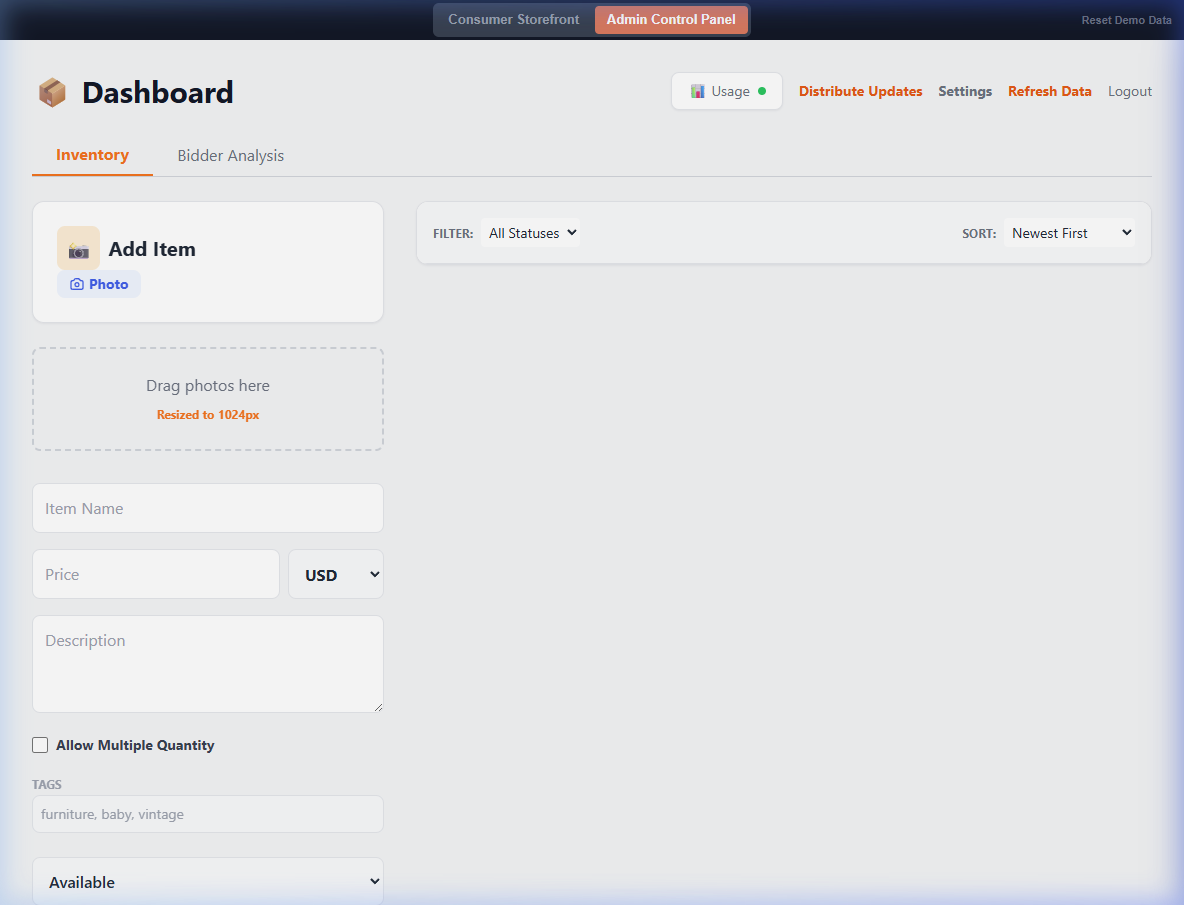
The Add Item form on the left side of your dashboard is your primary tool for growing your shop. You'll need to provide at least a name and a price to save an item.
2. Photography Made Easy
Kurb is designed to be used directly from your smartphone. When adding a new item, you can:
- Snap a Photo: Click the "Photo" button to open your phone's camera and take a picture of your item.
- Drag and Drop: If you're using a computer, you can drag multiple photos into the drop zone.
Note: Photos are automatically resized to 1024px before being uploaded, saving bandwidth and keeping your shop fast.
3. Item Statuses
Each item has a status that determines how it appears to buyers:
- Draft: Only visible to you. Use this for items you're still preparing.
- Available: Visible and open for offers!
- Pending: An offer has been accepted, but the sale isn't complete yet.
- Sold: The item is gone!
- Archived: Hidden from everyone. Good for items you've decided not to sell.
4. Search and Filter
As your inventory grows, use the filter and sort options at the top of your item list to find exactly what you're looking for.